


Monitor Support
You can reach your Sutter Sync Care Team at 855-320-5200. They’re available Monday – Friday, 7:00 am – 7:00 pm PT. After hours, please leave a message and they’ll return your call within 2 business days.
You can reach your Sutter Sync Care Team at 855-320-5200. They’re available Monday – Friday, 7:00 am – 7:00 pm PT. After hours, please leave a message and they’ll return your call within 2 business days.
First, make sure the batteries are properly installed in the monitor. You’ll also find an error code and troubleshooting list in your manual.
You can reach your Sutter Sync Care Team at 855-320-5200. They’re available Monday – Friday, 7:00 am – 7:00 pm PT. After hours, please leave a message and they’ll return your call within 2 business days.
They’re accurate! Still, you can bring it to your next doctor's visit for a quick side-by-side check. It may help you feel more confident.
The monitor is yours to keep! You can still use it, but readings won’t be sent to your health chart in My Health Online.
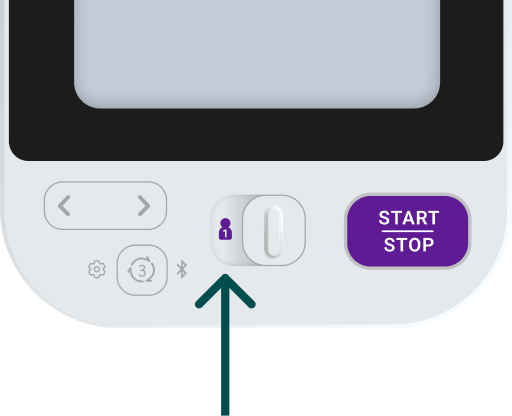
No, don’t share your monitor or scale. If readings get mixed up, it could affect your care plan. For your blood pressure monitor, make sure it’s set to profile one and continue using that profile.
Here are some things to check:
- Make sure the batteries in your monitor are working
- Double check that the correct profile is selected on your monitor
- Confirm your monitor is properly paired with the My Health Online app
- Make sure you’re signed in to My Health Online and that the app is open when you take a reading
- Keep your phone nearby while taking readings
If those don't work, you can reach your Sutter Sync Care Team at 855-320-5200.
Get your phone ready
- Open your phone's settings and make sure Bluetooth is turned on
- Make sure you have the latest version of the My Health Online app. Open the App Store, search for My Health Online, then tap Install, Update, or Open.
- Open the app and sign in
- Tap the menu icon in the top left corner (three stacked lines)
- Scroll down to My Record and tap Track My Health
- Tap Link Device
- Tap Bluetooth Device
- Tap Continue
- If prompted, tap Allow or Agree to enable Bluetooth connection
Pair your monitor to your phone
- Grab your monitor and pull out the battery tab. The monitor will automatically go into pairing mode for 3 minutes. If you run out of time, tap the Start/Stop button to turn it off, then hold the Settings button to reset pairing mode.
- In the app, tap SutterSync BP, then tap Continue
- Tap Connect
- A code will appear on both your phone and your monitor. If they match, tap Pair on your phone, then immediately press the START/STOP button on the monitor.
- In the app, tap Finish at the bottom of the screen
- The monitor will ask you to set the volume. Use the arrows to pick a level, then tap the Settings (3) button to confirm your selection.
Once connected, your monitor will appear under Connected apps and devices on the Health Connections screen.
Step-by-step video:
SPEAKER: In this video, we'll go over
how to pair your Sutter Sync blood pressure monitor
with an iPhone or an iPad.
Wait to turn the monitor on until we set up the My Health
Online app on your device.
If you already turned the monitor on,
just press the Start-Stop button to turn it off.
Then later, when it's time to start the pairing,
hold down the Settings button to restart pairing mode.
OK.
Let's get started.
First, let's make sure Bluetooth is turned on.
Open the Settings app.
Tap Bluetooth.
And turn it on.
You can also quickly check Bluetooth
by swiping down from the top-right corner of your screen
to open the control center.
Simply tap the icon to turn it on or off.
When it's highlighted in blue, it's on.
Next, let's make sure you're using the latest version
of the My Health Online app.
Open the App Store and search for the My Health Online app.
Then tap update, open, or get.
Once it's ready, open the app and log in to your MHO account.
From the screen, tap the Menu icon
in the upper left-hand corner and search for Track My Health.
Then tap Link device.
Scroll down to connect a new app or device.
And pause on this screen while we turn on the monitor.
Flip the monitor over and remove the plastic tab
from the battery compartment.
Once the tab is removed, the monitor
will automatically turn on and enter
pairing mode for three minutes.
Back in the MHO app, tap Bluetooth device.
Then tap continue.
Tap Allow to give the app permission to use Bluetooth.
Once it appears, tap Sutter Sync BP.
And then tap continue.
You'll see a code on both the monitor and your screen.
Make sure they match.
And then press pair.
Then press the Start/Stop button on the monitor
to finish the pairing.
The monitor will announce that pairing was successful
and then ask you to set the voice volume.
You can use the arrow buttons to choose a different volume level
or press the Settings button to confirm the default setting.
In the app, you'll now see your monitor
listed under connected accounts on the health connection screen.
And that's it.
Your monitor is now connected and will automatically
send your blood pressure readings to your health chart.
If you have questions about settings or error messages,
you can review the guide included in your care kit
or call us at 855-320-5200.
Our team is available Monday through Friday from 7:00 AM
to 7:00 PM to answer any questions.
Welcome to Sutter Sync.
[MUSIC PLAYING]
Get your phone ready
- Open your phone's settings and make sure Bluetooth is turned on
- Make sure you have the latest version of the My Health Online app. Open the Google Play Store, search for My Health Online, then tap Install, Update, or Open.
- Open the app and sign in
- Tap the menu icon in the top left corner (three stacked lines)
- Scroll down to My Record and tap Track My Health
- Tap Link Device
- Tap Bluetooth Device
- Tap Continue
- If this is your first time connecting a device, you'll be asked to allow a few permissions. These let the app find and connect to your monitor. Tap Agree and Allow on any pop-ups, then tap Set Permissions.
- In location settings, select Allow all the time and turn on Use precise location. Then tap Done or the back arrow.
Pair your monitor
- Grab your monitor and pull out the battery tab. The monitor will automatically go into pairing mode for 3 minutes. If you run out of time, tap the Start/Stop button to turn it off, then hold down the settings button to reset pairing mode.
- In the app, tap SutterSync BP, then tap Continue
- If prompted, tap Connect
- A code will appear on both your phone and your monitor. If they match, tap Pair on your phone, then immediately press the START/STOP button on the monitor.
- In the app, tap Finish at the bottom of the screen
- The monitor will ask you to set the volume. Use the arrows to pick a level, then tap the Settings (3) button to confirm your selection.
Once connected, your monitor will appear under Connected apps and devices on the Health Connections screen.
Step-by-step video:
SPEAKER: In this video, we'll go over
how to pair your SutterSync blood pressure
monitor with an Android device.
Wait to turn the monitor on until we set up the My Health
Online app on your device.
If you already turn the monitor on,
just press the Start/Stop button to turn it off.
Then later, when it's time to start the pairing,
hold down the Settings button to restart pairing mode.
OK.
Let's get started.
First, make sure your phone's Bluetooth is turned on.
You can quickly turn it on by swiping down
from the top-right corner of your screen
and tapping the Bluetooth icon.
Then to make sure you're using the latest version of the app,
open the Google Play store and search for the My Health Online
app by Sutter Health.
Then tap Install, Update, or Open.
Once it's ready, open the app and log in to your account.
Accept any announcements or permissions
that appear until you reach the home page.
Then tap the Menu icon in the upper left-hand corner
and search for track my health.
Next, tap Link device.
Then tap Bluetooth device.
If this is your first time connecting a device,
you'll need to enable Bluetooth connection.
To do this, tap Continue and then tap Agree.
On the next pop-up, tap Allow.
And then tap Set Permissions.
Here, tap Allow all the time to keep your monitor connected
and make sure that Use precise location is on.
Then tap the back arrow to return to the app.
Pause on this screen.
And now let's turn on the monitor.
Flip the monitor over and remove the plastic tab
from the battery compartment.
Once the tab is removed, the monitor
will automatically turn on and enter
pairing mode for three minutes.
When it appears, tap SutterSync BP.
And then tap Continue.
Tap Connect.
And then you'll see a six-digit code.
Make sure this code matches the one on your monitor screen
and then tap Pair.
Then on the monitor, press the Start/Stop button
to finish the pairing.
Your monitor is now connected to your My Health Online app.
You'll see the voice volume icon flashing.
Press the Settings button to confirm the default settings.
In the app, you'll now see SutterSync BP
listed as a connected device.
Now let's check a few final settings on your phone.
Open your phone's settings app and then search
for the My Health Online app.
If they aren't already, turn notifications on.
That way you'll get a confirmation when you're reading
has been successfully sent to your chart.
Then tap the back arrow.
And lastly, toggle off Manage app if unused.
This helps the app stay connected to your blood pressure
monitor in the background so your readings can
be sent without interruption.
And that's it.
Your monitor is now connected and will automatically
send your blood pressure readings to your health chart.
If you have questions about settings or error messages,
you can review the guide included in your care kit
or call us at 855-320-5200.
Our team is available Monday through Friday from 7:00 AM
to 7:00 PM to answer any questions.
Welcome to SutterSync.
[MUSIC PLAYING]
Remember these tips to make sure your readings are accurate:
Do:
- Always keep your monitor set to user one, otherwise we won’t get the readings
- Use the restroom before taking your reading, if you need to
Don't:
- Don’t share your monitor — we want to make sure the readings are always yours
- Don’t have coffee, nicotine or do high-energy activities 30 minutes before taking your readings
Here’s how to take a reading:
- Make sure you're logged in and your My Health Online app is open
- Rest quietly for at least 5 min before taking a reading
- Sit in a chair with your feet flat on the floor
- Remove any jewelry from the arm where you’ll put the cuff
- Keep your arm at heart level, supported on a table or armrest
- With your palm up, wrap the cuff about an inch above your elbow
- Place the cuff on bare skin, not over clothing, about 1 in above your elbow
- Make sure the cuff is snug, not tight — you should be able to slip one finger between the cuff and your skin
- Make sure the monitor is off and press the START STOP button. You’ll see the Bluetooth symbol flash when the reading starts
- Don’t talk or move while the monitor is working
Watch How to Take A Blood Pressure Reading
SPEAKER: Before you take your first reading,
make sure you've paired your SutterSync monitor with the My
Health Online app.
If you need help pairing, take a look
at the guide that came with your care kit.
To get the most accurate reading of your resting blood pressure,
avoid coffee, nicotine, and high-energy
activity for at least 30 minutes beforehand.
And if you can, rest quietly for 5 to 10 minutes.
Now, let's get started.
Grab your SutterSync blood pressure monitor
and smartphone and sit comfortably at a table.
Make sure your phone's Bluetooth is turned on and then log
into your My Health Online app.
You'll need the app open in the background during every reading.
Remove any jewelry and roll up your sleeve so your arm is bare.
If possible, use the same arm for every reading.
Then wrap the cuff around your upper arm.
Wrap it about 1 inch, or two finger widths,
above where your elbow bends.
It should feel snug, but not too tight.
You should be able to fit one finger under the cuff.
Make sure the air tube runs down the center of your arm,
right in line with your middle finger.
And rest your arm on the table with your palm facing up.
Sit up straight with your feet flat on the floor.
Be sure not to cross your legs.
Relax your shoulders and arms.
And take a few deep breaths.
Before you start, check that the monitor is set to User 1.
It must stay on User 1 for every reading.
Then when you're ready, press the Start/Stop button
to begin the reading.
The cuff will automatically begin inflating.
Be sure to stay still and quiet during the reading.
When you're reading is finished, the cuff
will deflate automatically.
And you'll see your numbers on the screen,
along with a small upload icon that
will blink and then disappear once your reading has
been securely sent to your My Health Online chart.
And that's it.
The monitor will shut off automatically
after about a minute.
To view your reading in the MHO app, tap the Menu icon
and search Track My Health.
Under Health logs, tap Hypertension Home Monitoring.
Then tap View all readings to see your most recent results.
If you run into any error messages while taking a reading,
check out the user manual that came in your care kit.
And if your cuff is too big or too small for your arm,
contact your SutterSync care team for support.
[MUSIC PLAYING]
Your blood pressure has two numbers. The top number (systolic) shows the pressure when your heart beats. The bottom number (diastolic) shows the pressure when your heart rests. Everyone is different. Your doctor or Sutter Sync Pharmacist and Care Team can explain what your numbers mean for your health.
Change the batteries in your blood pressure monitor when the low-battery symbol appears or about once a year. Always use the type of batteries the monitor recommends.
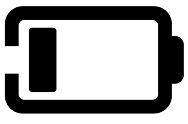
You’ll know the batteries are low when the low-battery symbol shows on your monitor or the display doesn’t light up or is dim. At that point, it’s time to replace them.
The monitor has two profiles so more than one person can use it. Each profile keeps readings separate. However, we don’t recommend sharing your Sutter Sync monitor at all. Stick to one user and profile one. If it’s set to the wrong profile, then your readings won’t sync with My Health Online.
You can mute it by pressing the settings button and using the left or right buttons to adjust the volume. For more details, see the blood pressure monitor manual (PDF).
If you pair the monitor with your My Health Online app, it should match your phone’s time. To set the time manually:
- Press the settings button until the time flashes in bottom left corner
- Use the left or right buttons to set the hour
- Press settings
- Use the left or right buttons to set the minutes
For more details, see the blood pressure monitor manual (PDF).
You can change the volume by pressing the settings button and using the left or right buttons to increase or decrease the volume. For more details, see the blood pressure monitor manual (PDF).
This monitor uses its own cellular connection, so it connects to your My Health Online app without Bluetooth. Press the gray button to wake up your new glucometer. If you want to change the settings, press and hold the gray button to begin set-up mode. Follow the steps in the user manual to set up:
- Date and time (including a 24 hr or 12 hr clock)
- Audio features
- The meal marker
- A Hypoglycemia (Hypo) warning
- A Ketone warning
Watch their video or follow the steps in iGlucose Essential’s Quick Start Guide to make sure your readings are accurate.
Download the iGlucose Essential Quick Start Guide
Watch the iGlucose Essential How To Video
- Wash your hands with soap and water. Dry them well.
- Take off the cap of the lancing device. Grab below the gray tip of the cap just above the orange button and twist.
- Put the lancet (finger prick) into the device. Don’t take off the lancet’s tiny cap yet.
- Push the lancet in firmly until it stops.
- Twist off the lancet’s tiny cover to uncover the needle.
- Put the cap back on the lancing device. Be careful.
- Turn the top gray tip (it’s helps you choose how deep the needle pokes your skin).
- Pull the bottom of the lancet back to prepare the device.
- Take a test strip from the container. Close the container right away.
- Put the test strip into the meter. The meter will turn on.
- Wait for the blinking blood drop symbol on the screen. This means it’s ready.
- Use the lancing device to poke the side of your fingertip and get a drop of blood.
- Touch the tip of the test strip to the blood drop.
- Let the blood get sucked into the strip.
- Do NOT put blood on top of the strip.
- The meter will count down from 5 to 1. Then your blood sugar number will appear.
No. You need to use the iGlucose Essential Glucometer Sutter Sync sent you. It sends your readings straight to your health chart in your My Health Online app. This way, your Sutter Sync Pharmacist and Care team (as well as your doctor) can see them, track changes, and give you personalized support.
Many people check in the morning, before meals, after meals, and before bed. Your Sutter Sync Pharmacist and Care Team will guide you and let you know when to take readings. You can reach your Sutter Sync Care Team at 855-320-5200. They’re available Monday – Friday, 7:00 am – 7:00 pm PT. After hours, please leave a message and they’ll return your call within 2 business days.
Get your phone ready
- Make sure Bluetooth is turned on in your phone’s settings
- Make sure you have the newest version of the My Health Online app. To do this, search for My Health Online in the App Store or Google Play on your phone. If there’s an update, you’ll see an Update button. Tap the button to get the latest version. Your monitor only pairs with the MHO app.
- Sign in to Sutter Health’s My Health Online app
- Tap the menu in the top left corner
- Scroll to find My Record and tap Track My Health
- Tap Link Device
Pair your scale to your phone
- Grab your scale
- Pull out the tab on the back of the scale (you’ll have 30 seconds to pair)
- In the app, tap Bluetooth Device
- Tap OK or Agree
- Tap SutterSync Scale, then tap Continue
- Tap Connect
- Check if the codes match and tap Pair
- Press the button on the back of the scale — pairing is confirmed when the Bluetooth symbol stops flashing
If the connection was successful, you’ll see the scale under Connected Accounts.
Download how to pair your scale with My Health Online (PDF)
Watch how to pair your scale with My Health Online
SPEAKER: Once you've paired your SutterSync scale with your My
Health Online app, all of the readings you take at home
will be automatically sent to your chart.
So let's get started.
First, take out your SutterSync scale and your smartphone.
In this video, we'll be using an iPhone.
If you use an Android, the steps are the same,
but your screens may look slightly different.
First, turn on your phone's Bluetooth.
Then to make sure you're using the latest version of the My
Health Online app, open your phone's app store
and search for the My Health Online app.
And then tap Update, Open, or Get.
Open the app and log in to your account.
Once you're logged into your account,
tap the menu icon in the top-left corner.
Scroll down to My Record.
And then tap Track My Health.
Next, tap Link device.
And then scroll down to connect a new app or device.
Pause on this screen.
And now let's turn on your scale.
Flip the scale over, and then pull out the plastic tab
from the battery compartment.
Once you pull out the tab, the scale will turn on
and you'll see the word Pair on the screen.
If at any point the pairing times out and the scale screen
turns off, just hold down the button on the back of the scale
and try again.
Now let's start the pairing.
Under Connect a new account, tap Bluetooth device.
Tap Continue.
And then tap Allow to enable the Bluetooth connection.
Select SutterSync Scale, and then tap Continue.
Make sure the code shown on your scale's screen
matches the code on your phone and then tap Pair.
To finish the pairing, press the button on the back of the scale.
On the screen's display, you'll see the word Success and then
0.0. pounds.
And that's it.
You're all set.
In your app, you'll see your scale
listed and under connected accounts
on the Health Connections screen.
For more details on adjusting settings, understanding error
messages, and how to take a reading,
check out the monitor guide in your care kit.
And if you run into any issues, call 855-320-5200.
We're here Monday through Friday from 7:00 AM to 7:00 PM.
If it's after hours, leave a message
and we'll get back to you within two business days.
[MUSIC PLAYING]
Here are some tips:
Do:
- Use the scale on a hard, flat floor
- Stand on the scale with your feet flat
- Keep still while you stand on the scale
Don’t:
- Don’t use the scale after a shower or while your feet are wet
- Don’t use the scale on a carpet or rug
- Don’t share your scale, it’s just for you. Since readings go directly to My Health Online, we don’t want to confuse someone else’s readings for yours
- Step on to the scale. It’ll turn on by itself. You don’t need to press a button to turn it on or off. Make sure you’re barefoot
- The weight will flash twice — then it’ll stop flashing and stay in place
- The scale sends your reading to My Health Online. It will turn off automatically when it’s done — about 15 seconds
If someone else uses your scale, their readings could be confused for yours. To delete or edit the reading in My Health Online, take these steps:
- Sign in to your My Health Online account
- Tap the menu in the top left corner
- Scroll to find My Record and tap Track My Health
- Tap Pregnancy Home Monitoring
- Tap View All Readings and Edit